Installing BIRT
BIRT is a reporting tool used by BOMArchitect and QuoteArchitect to render reports. The BIRT software, an SQL driver and a supporting web server must be installed on the same computer as the CIS server component.
This article describes a simple default configuration. Users are free to install the software differently if they have specific requirements; such as using a different web server following the BIRT documentation.
Standard configuration.
On the server computer first install or check for the presence of a suitable JRE (Java Runtime Environment). This software has been tested with JRE version 1.8.0_261. Typically this will be located in the following folder. NB ensure that the 64 bit version is installed.
C:\Program Files\Java\jre1.8.0_261\bin\server\jvm.dll
Next install the Apache Tomcat web server version 9, you should choose the 32-bit/64-bit Windows Service Installer. On the configuration screen when asked for a user name and password enter appropriate values for these. Apart from this choose the default options on each screen.

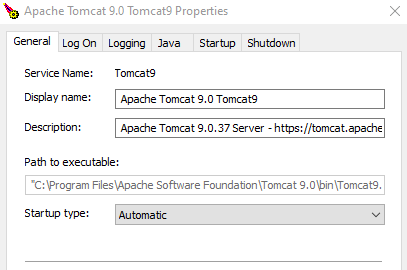
After installation the Tomcat service should be set to auto-start so that it starts when the computer is restarted. From the Windows start menu select Tomcat Configuration and change the startup type to automatic.
Click this link in a browser running on the server computer. If Tomcat is installed correctly you will see the following message.

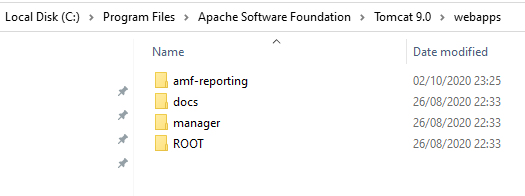
Download the BIRT based reporting package amf-reporting.zip or amf-reporting.tgz Extract the downloaded file to the webapps folder in the Tomcat installation. Typically
C:\Program Files\Apache Software Foundation\Tomcat 9.0\webapps
The webapps folder should now have a folder “amf-reporting” as shown here.
Click this link in a browser running on the server computer. If BIRT is installed correctly you will see the following entry

The Windows firewall settings will need to be changed to allow incoming connections. This guide shows how to do this. Port 8080 must be opened. When this is done, from a browser NOT on the server enter the link http://servername:8080/manager/html changing servername to the name of the server computer. Again you should see the entry
Configuring the interface.
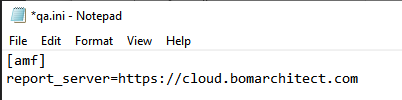
On each client computer. Open the files bomarchitect.ini and qa.ini and enter the report_server option as shown below, if using a private cloud instance replace this url with that of your cloud server. See this article for information on where to find these files.
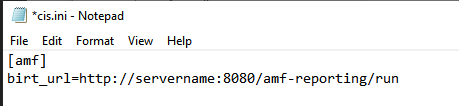
On the server computer. Open the file cis.ini and enter the birt_url option as shown below, changing servername to the name of the server computer. NB this url is used by the clients so must explicitly identify the server, ie localhost or 127.0.0.1 can not be used, except in test configurations where client and server software execute on a single computer.
Using an alternate BIRT location.
If the web server webapps folder is not located at
C:\Program Files\Apache Software Foundation\Tomcat 9.0\webapps
then set the following registry setting to indicate the location of the BIRT app. This must be done before installing or updating the CIS server software and ensures that the report definitions and other web assets are delivered to the correct location on subsequent installation and updates.
