Resetting a database
Introduction
In some cases it might be necessary to clear the CIS database and start again. For example following an evaluation before starting production usage. The procedure described here allows this. This procedure should be used with extreme caution. Data will be lost.
Procedure
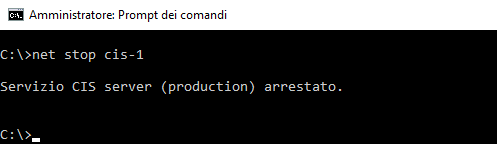
Stop the server service.
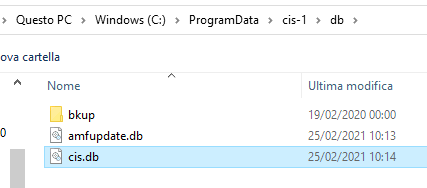
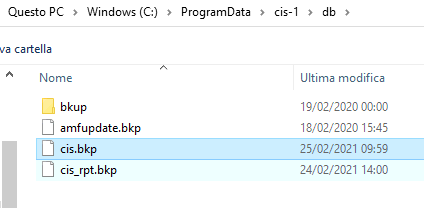
Rename the database files

Using the Armida Product Manager; install product option reinstall the server by providing it’s licence key.
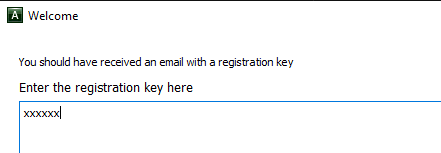
The initial database is created.
Reloading data.
Typically data from the manufacturer alias database and / or shape code database might be retained. Use this procedure to reload such data from the backup retained above.
Download and install SQLite Expert
http://www.sqliteexpert.com/download.html
Start it as an administrator
Use the option File->Open Database to open the database file.
Use the option File->Attach Database to attach the backup
Reloading manufacture alias data from backup
In the SQL tab enter
delete from cis_manufacturer_alias;
insert into cis_manufacturer_alias select * from cis.cis_manufacturer_alias;
Press F5 to execute the SQL.
Reloading shape code data from the backup
The reinstalled database will have default shape content. If prefered this can be replaced with the backed up shape content as follows.
In the SQL tab enter
delete from pc_shape_code;
delete from pc_shape_detail;
insert into pc_shape_code select * from cis.pc_shape_code;
insert into pc_shape_detail select * from cis.pc_shape_detail;
Press F5 to execute the SQL.